
Your notification and display settings are in your dashboard under Settings, then General. Each switch saves the moment you change it. The same page is where the company owner closes the company with Delete Company.
Where to find it
- In your dashboard, open Settings.
- Click General. It is the first tab.
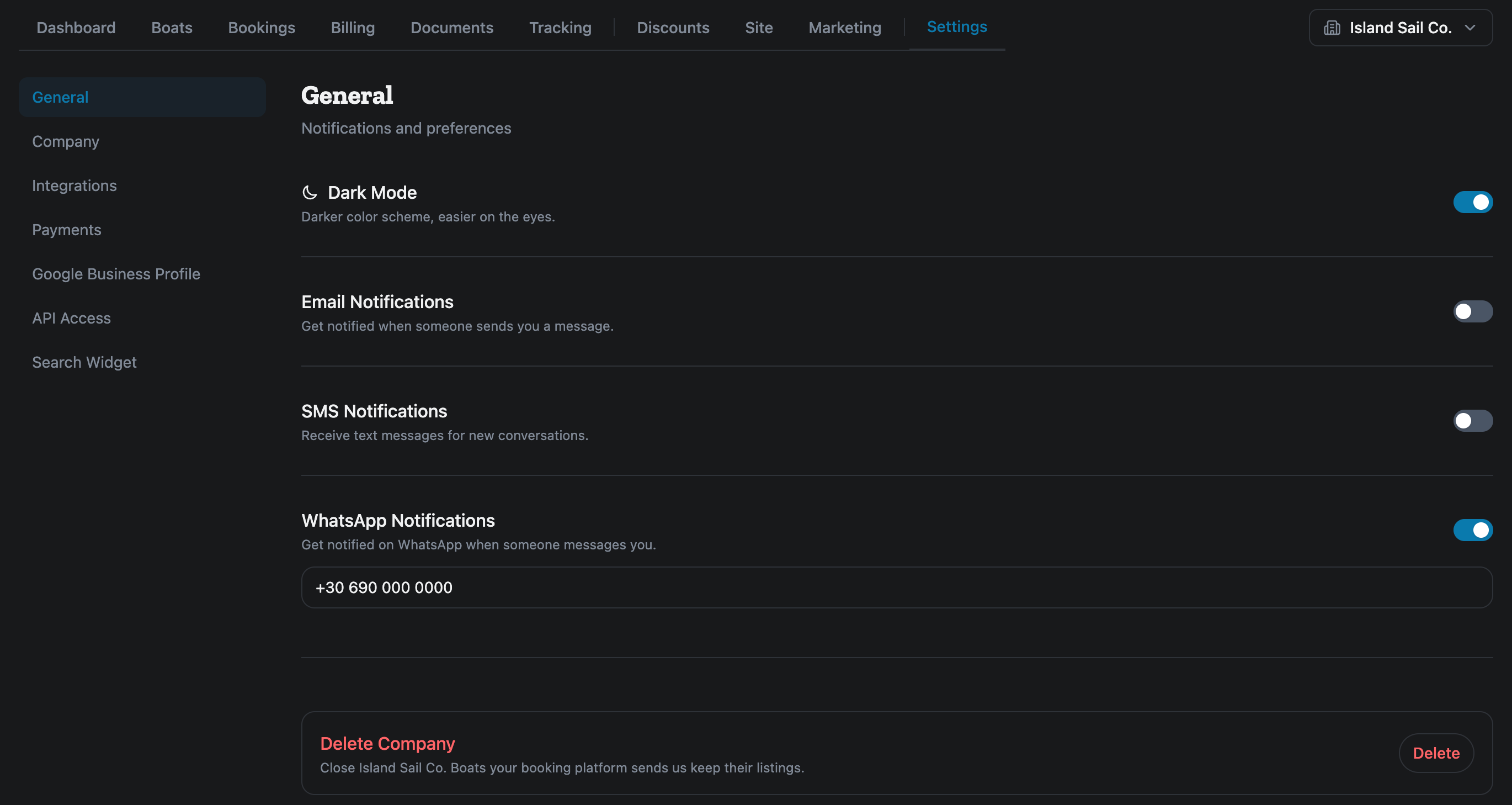
The same switches are also under My Settings, in the menu behind your picture at the top right. They are your own settings, not the company's: every team member sets their own.
Notifications
These decide how you hear about new messages from guests.
- Email Notifications: an email when someone sends you a message. It is on unless you switch it off.
- SMS Notifications: a text message for new conversations.
- WhatsApp Notifications: a WhatsApp message when someone messages you. When you switch it on, a phone number field appears. Type your number with the country code, for example +30 690 000 0000. It is saved when you click outside the field.
SMS and WhatsApp go to the same phone number. A short Saved message confirms each change.
Dark mode
Dark Mode switches the site to a darker colour scheme, which is easier on the eyes at night.
How to close your company
Only the company owner sees Delete Company, at the bottom of the page.
- Click Delete.
- Read the list in the box that opens. It says what is removed.
- Type DELETE in the box.
- Click Delete Company.
What is removed: the boats you created yourself and their data, your calendar sources and sync history, your team members and invitations, and your contracts and templates.
What stays: boats that reach us through MMK or Nausys keep their listings. To take those off the market, withdraw them in MMK or Nausys. Past bookings, reviews and payout records are kept. In that case the message reads Company closed — its partner listings stay with MMK/Nausys.
When it is refused: you cannot close a company while it has active bookings, or while a payout to you is still owed. The message says how many. Let the bookings finish or cancel them first.
Passkeys and deleting your own account
My Settings, then General, has two more parts that belong to you as a person.
Security
Security lets you sign in with Face ID, Touch ID or your device PIN instead of a password. Click + Add a passkey and follow your device. Click Remove next to a passkey to stop using it.
Delete Account
Delete Account deletes your own account. Type DELETE and click Delete Account. Your company is not deleted: you leave it, and the company and its partner-listed boats stay. A tick box lets you also delete the photos you added to boats and places. You cannot delete your account while you have active bookings.
To give someone else access before you leave, see How do I add a team member, and what can a member do?
For the other screens in your dashboard, see the Owner Dashboard guide. If something on this screen does not match what you see, ask Mermaid in the chat, or write to support@charter.boats.