
To add a team member to your charter company account, open Settings, then Company, and click Team members at the top right. Click Invite Team Member, type their email address and click Send Invitation. Only the company owner can do this.
Where to find it
- In your dashboard, open Settings.
- Click Company.
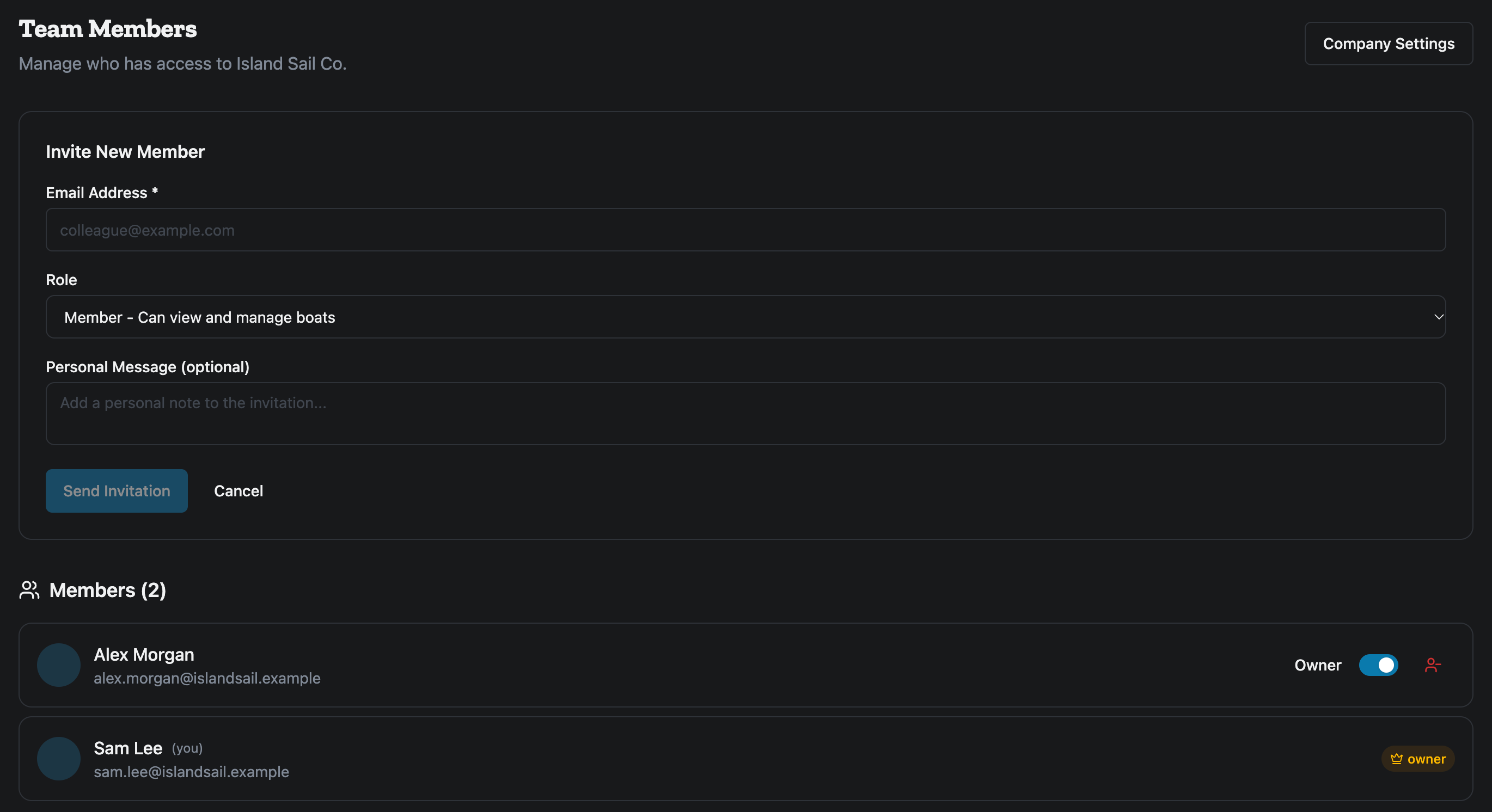
- Click Team members, at the top right of the page. The Team Members page opens. It lists everyone who has access to your company.
How to invite someone
- Click Invite Team Member. A short form opens.
- Type their email address in Email Address.
- Leave Role on Member. See below for how to make someone an owner.
- If you like, add a note in Personal Message (optional). It is shown in the invitation email.
- Click Send Invitation.
The person gets an email with an Accept Invitation button. The invitation is valid for 7 days. Until they accept, they are listed under Pending Invitations.
What your team member does
- They open the email and click Accept Invitation.
- They sign in, or create an account, with the same email address you invited. An invitation sent to one address cannot be accepted from another account.
- They click Accept Invitation on the page that opens. Their dashboard opens, and they now appear in your members list.
If the invitation has expired, the page says so. Send a new one the same way.
How to make someone an owner
Everyone who joins a company that already has members joins as a member, whatever role the invitation named. To give someone owner rights, wait until they appear in the list, then switch on Owner next to their name. Switch it off to make them a member again.
A company always keeps at least one owner. You cannot switch off the last owner, and you cannot change your own role.
What a member can do
A member can work on the boats and the day-to-day: edit boat listings, photos and prices, block dates and sync calendars, create discount coupons, send documents to guests, edit the company profile, and use the Site, Search Widget and Tracking screens.
What only an owner can do
Some things stay with the owner, because they touch money or the company itself:
- Accept or decline a booking request. A member who tries sees Only the owner can accept bookings.
- Invite, remove or change the role of team members.
- Change the contact email, bank, tax, invoicing and booking-policy details.
- Change where a boat is sold, its pricing source. See How do I switch a boat between MMK/Nausys and my own prices?
- Delete a boat listing, file a damage claim, switch on X-Lock and turn on Billing.
- Create, edit or delete document templates, and void a contract.
- Delete the company.
If a member needs one of these done, they ask the owner.
How to cancel an invitation or remove a member
To cancel an invitation that was not accepted yet, click Cancel next to it under Pending Invitations, then Revoke invite.
To remove a member, click the red person icon next to their name, then Remove. You cannot remove yourself, and you cannot remove the last owner.
If you cannot see these buttons
If the page shows the members list but no Invite Team Member button, you are signed in as a member. Ask the owner of your company account to invite people or change roles.
For the other screens in your dashboard, see the Owner Dashboard guide. If something on this screen does not match what you see, ask Mermaid in the chat, or write to support@charter.boats.