
To block dates on your boat calendar, open Boats in your dashboard, click an empty spot on the boat's row at the date you want, pick a Reason and click Block Dates. The dates close on charter.boats at once, and on a boat linked to MMK or Nausys a hold is placed there too.
Use it for a week you sold elsewhere, your own use, or maintenance. To remove a block, click it and confirm.
Reading the calendar
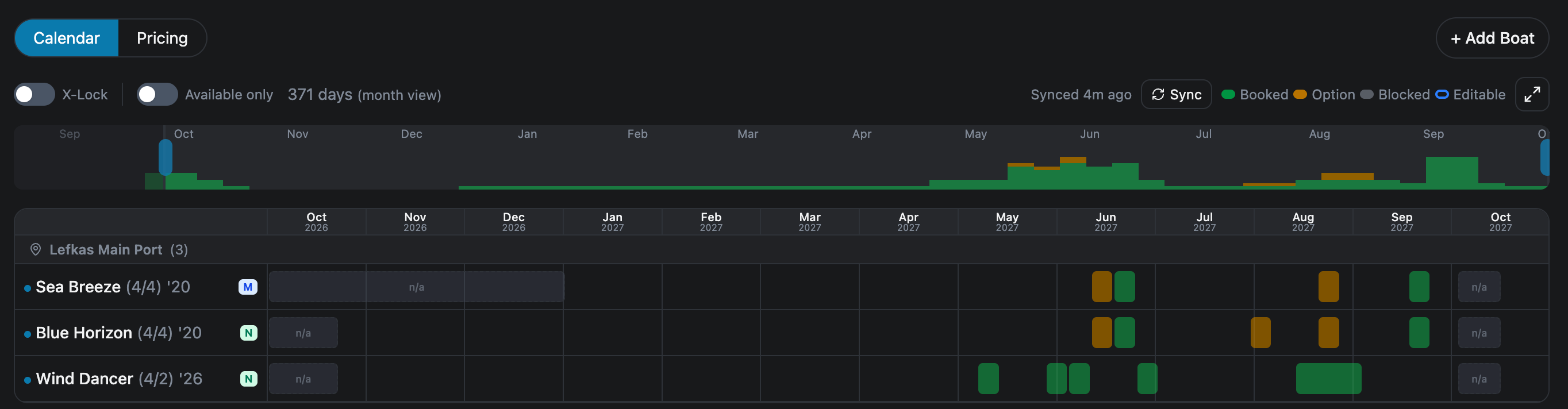
Boats opens on the Calendar view. Each boat has one row, grouped by marina, and time runs from one month back to a year ahead. The legend above the calendar reads:
- Booked, in green.
- Option, in amber: a timed hold that is not paid yet.
- Blocked, in grey.
- Editable, a blue outline: things made on charter.boats, which you can click.
Hover over a bar to see its details. Click a booking to open it in a new tab. Cells marked n/a have no price, so they cannot be blocked: add prices first, see How do I set my boat's prices and seasons?.
How to block dates
- Click an empty spot on the boat's row, at the date you want to close.
- The Block Dates dialog opens with the boat's name at the top.
- Pick a Reason: Booking for a booking you took elsewhere, Personal Use or Maintenance.
- Check the dates. With Booking, they start on the boat's check-in day and run for its minimum stay, or 7 nights when none is set. With Personal Use or Maintenance, they start on the day you clicked, for one night.
- To pick other dates, click the dates box or Change Dates and choose them on the calendar.
- Add Notes if you like. They are optional.
- Click Block Dates. You see Dates blocked.
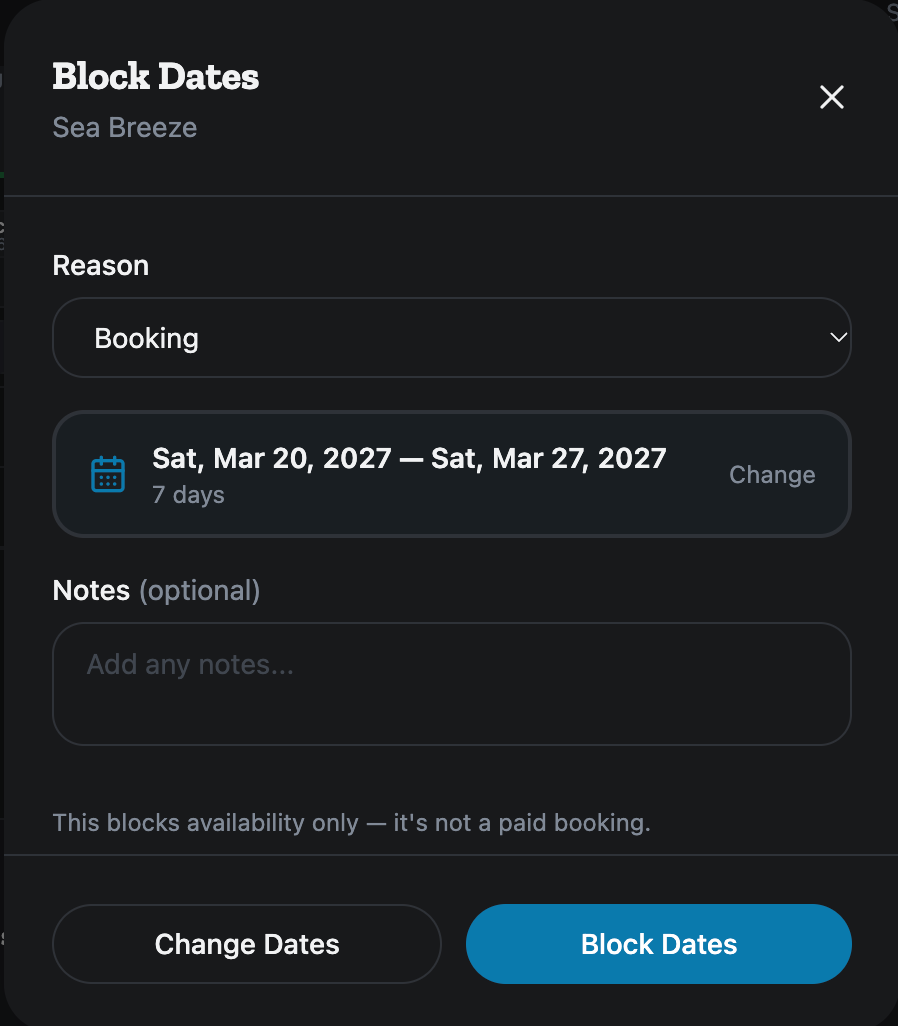
The dialog reminds you: This blocks availability only — it's not a paid booking.
What a block does in MMK and Nausys
On a boat linked to MMK or Nausys, a block also places a hold in the system that prices the boat. If that hold cannot be placed, the dialog stays open with Block created, but external sync failed: and the reason. The dates are still closed on charter.boats, so close them in that system yourself.
How to remove a block
- Hover over the block. It says Click to remove block, and which holds it releases.
- Click it.
- Confirm Remove this block? Any holds on external platforms (MMK, Nausys) will also be released. with Remove.
- You see Block removed.
Only blocks made on charter.boats can be removed here. A booking or block that came from MMK, Nausys or another calendar is changed where it was made.
X-Lock: close a week on both MMK and Nausys
The X-Lock switch appears when your boats are on both MMK and Nausys, or a boat is listed on one of them but priced elsewhere. With X-Lock on, a block, a booking from MMK or Nausys, and a booking from an imported calendar are also held on the other system. A week sold on one then closes on the other.
- Click the X-Lock switch.
- Confirm Enable X-Lock? Blocked dates will auto-sync across MMK & Nausys. with Enable.
- Answer Sync all existing blocks across platforms now? with Yes to hold the dates you already blocked, or No for new ones only.
To turn it off, click the switch again and confirm Disable X-Lock? Cross-platform date syncing will stop. You are then asked Remove all cross-platform holds we created?. Only the company owner can switch X-Lock.
Available only, Sync and full screen
Available only hides boats that have no prices anywhere on the calendar. The number beside it, such as (-3), says how many are hidden.
Sync appears when a boat is linked to MMK or Nausys. Click it to pull the latest availability from them now. Synced with a time shows when that last happened.
The button at the top right shows the calendar full screen.
Calendars from other sites
Bookings from Click&Boat, GetMyBoat, Google Calendar and other calendars can close your dates by themselves. Set that up in Calendar Sync. If guests book your boat instantly, a calendar kept up to date matters most, see Instant Booking or Approval Needed.
For every other screen in your dashboard, see the Owner Dashboard guide. If something here does not match what you see, ask Mermaid in the chat, or write to support@charter.boats.