
To set boat charter prices on charter.boats, add price periods in the boat editor: a name, a daily rate in euros and a date range, such as a high season and a low season. Each period repeats every year, so you set your seasons once.
To raise or lower many weeks or boats at once, use the Pricing view on the Boats page instead. Both places work only on boats you price yourself.
How prices work
A price period is a daily rate in euros for a date range. The list shows · every year beside each period that repeats. A week that no period covers has no price, and guests cannot book it.
If your boat is priced through MMK or Nausys, the Pricing section says Prices come from MMK. To set your own, switch the pricing source to Direct. Change those prices in MMK or Nausys, or take the boat over as described in How do I switch a boat between MMK/Nausys and my own prices?.
How to add a season in the boat editor
- In your dashboard, open Boats and click the boat's name.
- Scroll down to Pricing and click + Add Price.
- Type a name, for example "High season".
- Type the daily price in euros.
- Click the date button, which starts as Jan 1 – Dec 31. Pick the first and the last day of the season on the calendar.
- Click Add Price.
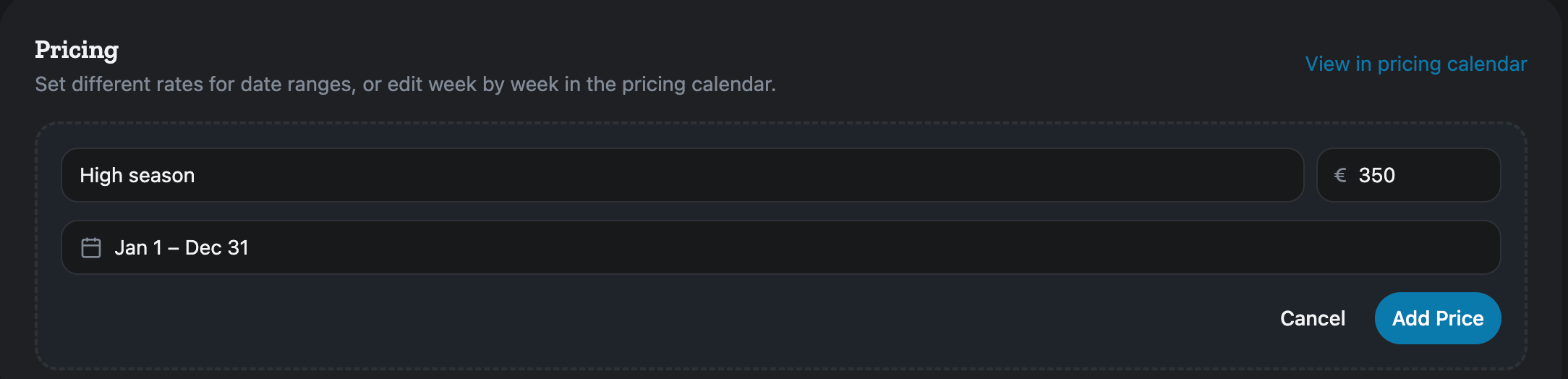
The period is saved at once. You do not need Save Changes. Repeat for each season. A season can run over New Year, for example from December to February.
To change a period, click the pencil, edit it and click Save. To remove one, click the bin and confirm Delete this price?. A boat with no periods shows No pricing set.
How to change many weeks at once
- Open Boats and click Pricing, beside Calendar. Or click View in pricing calendar in a boat's Pricing section to see only that boat.
- Each row is a boat and each column a week. Each cell is the price in euros per day.
- Press and drag across the weeks you want to change. Drag down as well to include more boats.
- A panel shows what you picked, for example 2 boats × 4 weeks, with the average price per day.
- Pick % or €.
- Type the change. With %, for example +10 or -5. With €, an amount per day, for example +50 or -20.
- The cells show the new prices. Click Apply.
- You see a message such as "4 price period(s) saved."
Press Esc or click Cancel to clear the selection without changing anything.
The changes you make here show up in the boat editor as extra price periods.
Weeks with no price
If your selection includes priced weeks, the empty weeks in it are left alone. If every week you selected is empty, € sets the amount you type as the daily price. % changes nothing on an empty week, because there is no price to change.
Boats from MMK or Nausys show their prices in this view, labelled MMK or NAUSYS, and cannot be selected.
On a phone
The week grid works with a mouse. On a phone, use the Pricing section of the boat editor.
What comes next
Add cleaning, a skipper and other charges in How do I add cleaning, skipper and other fees to my boat?. How guests see your prices, fees and the platform fee is explained in Fees & Pricing.
For every other screen in your dashboard, see the Owner Dashboard guide. If something here does not match what you see, ask Mermaid in the chat, or write to support@charter.boats.