
Your boat bookkeeping app is the Billing screen in your dashboard. Take a photo of a receipt, upload an invoice, or type what you paid, and it is read and filed for you. Your charter.boats payouts appear in the same list on their own, and your accountant gets one read-only link to all of it.
Turn it on first
Billing is off until the company owner turns it on.
- In your dashboard, open Billing.
- The owner clicks Get started.
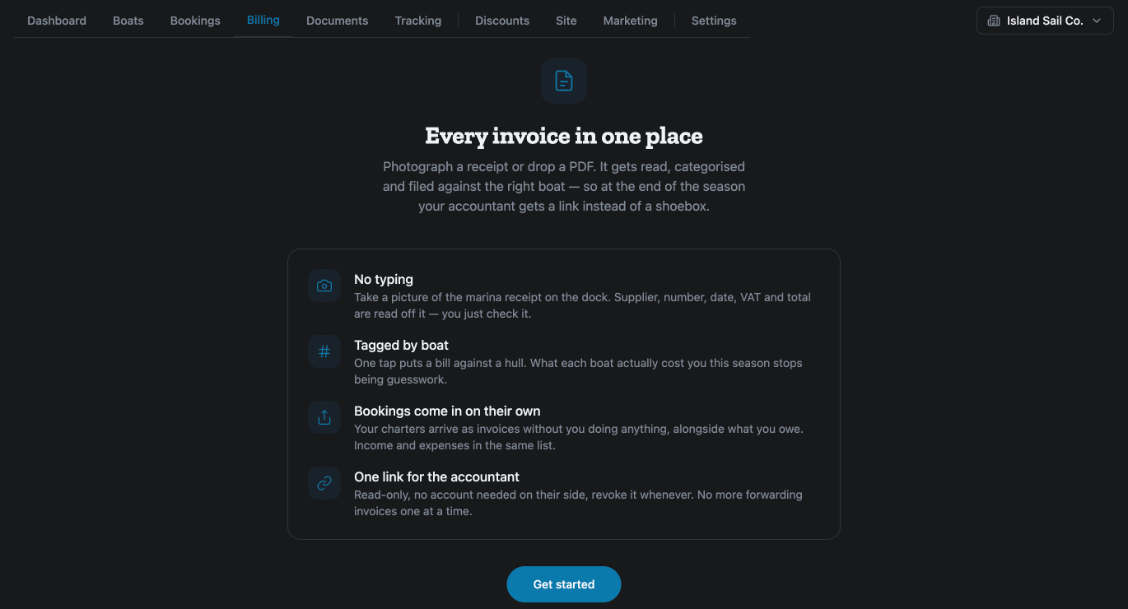
After that, every team member can use it.
How to add a receipt or an invoice
There are three ways, all at the top of the page.
- Take photo: on a phone, this opens the camera. Photograph the receipt on the dock and you are done.
- Upload: choose a photo or a PDF from your computer or phone. You can pick several at once.
- Type it: write a line in the box and click Add. The box shows an example: "paid 340 eur to Gouvia marina for #Sunny berth". A word with # in front becomes a tag.
While it reads the document you see Reading…. It picks out the supplier, the invoice number, the date, the VAT and the total.
Check what it read
If something could not be read, the row is marked check blanks in yellow and counted under Needs review at the top.
To fix a row, click it. You can change the Vendor, the date, the Total, the currency, the category and the tags. Click Save, or Cancel to leave it as it was. Click the supplier's name to open the original file.
Keep the list in order
Each row has:
- A category drop-down. Pick the category the bill belongs to.
- Your boat names, each with a + in front. Click one to put the bill against that boat. This is how you see what each boat cost you this season.
- Mark paid. Click it when you have paid. It then reads Paid.
- biz acc. Ticked means it was paid from the company's account. Untick it for a bill paid from a private account.
- A bin icon to delete the row.
The three tiles at the top add it up: To pay is what you still owe, To collect is what you are still owed, and Needs review counts the rows to check.
Use Payable and Receivable to switch between bills you pay and money you receive. The # tags under them filter the list; All shows everything again.
Your charter.boats payouts
You do not need to add your bookings. Each payout from a charter.boats booking appears on its own under Receivable. For how payouts work, see When and how do I get paid?
Categories
Click Categories at the bottom to see the full list every bill is filed under. These are our own categories, so check with your accountant before treating one as an account in your books.
Share it with your accountant
- Click Share with your accountant to open it.
- Click Create another link. A new read-only link appears. Your accountant does not need an account to open it.
- Type a name for the link, for example your accountant's name, so you know who has which link.
- Send them the link.
To stop a link working, click Revoke next to it.
For the other screens in your dashboard, see the Owner Dashboard guide. If something on this screen does not match what you see, ask Mermaid in the chat, or write to support@charter.boats.