
You do not need a paper boat rental contract template. In your dashboard you build your own contract, or import the PDF you already use, and send it from the booking. The guest signs it online, and you download the signed copy. The guest's passenger list sits on the same booking.
This page shows how to set up a charter contract once and have it sent for you, booking after booking. We do not give legal advice: what your contract must say depends on your country and your insurance, so start from the agreement you already trust.
Where contracts live
In your dashboard, open Documents. There are two tabs. Templates holds your contract templates. Contracts holds every contract you have sent, with a filter: All statuses, Sent, Viewed, Completed, Expired and Voided.
Who can do what
Only the company owner can create, edit or delete templates, and only the owner can void a contract. Any team member can send a contract to a guest. See How do I add a team member, and what can a member do?.
How to make your boat rental agreement template
- In Documents, click New Template. The first time, the button reads Create Your First Template.
- Type a Template Name, for example Bareboat Charter Agreement.
- If you already have your yacht charter agreement as a PDF, click Import PDF and choose the file. The page shows AI is analyzing your PDF. A few seconds later the template is filled in from your PDF. Read it through and fix anything that came out wrong.
- To build it by hand instead, edit the blocks. A new template starts with a heading, a paragraph and a signature. Add more with + Add block or the + between blocks.
- Click Preview to see what the guest will see. Click Edit to go back.
- Click Save Template.
The blocks you can use are Heading, Paragraph, Image, Text answer, Date, Yes / No, Dropdown, Signature, Initials and Side-by-side row. Text answer, Date, Yes / No and Dropdown are questions the guest fills in, so the contract can double as your boat rental agreement form.
Each time you save a change to the blocks, the template gets a new version, shown as Version and a number. Contracts you already sent keep the version they were sent with.
Two switches on the template
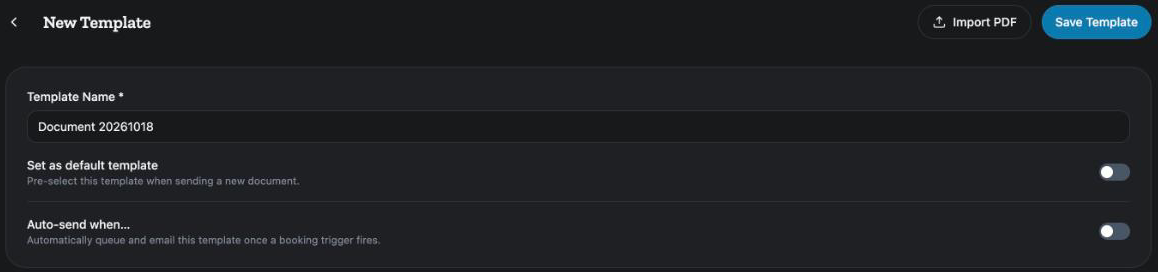
Set as default template picks this template first whenever you send a document. The screen says Pre-select this template when sending a new document.
Auto-send when… sends the template for you. The screen says Automatically queue and email this template once a booking trigger fires. Choose the moment: Reservation is paid (booking confirmed), Trip starts or Trip ends. Then set how many days after it, or before it for the start or end of the trip. With auto-send on, nobody has to remember to send the contract.
How to send a contract to one guest
- In your dashboard, open Bookings and click the booking.
- Find the Documents section.
- Click + Add Document.
- Under Select Template, pick the template. To make a new one first, click + New template.
- Click Send to Guest.
The guest gets an email and signs online. On the booking, the document then shows where it stands: Sent and a date, Viewed and a date, each with Pending completion, and finally Completed and the date it was signed. A signed contract has a Download button.
The passenger list
The guest fills in their passenger list themselves. On the booking, Passenger List shows how many passengers are on file, and submitted by guest once they have sent it. Click Download to get the list, ready for the port authority or your base.

The contract page
Click a contract, on the booking or in Documents, to open it. The buttons at the top depend on where it stands. Send to Guest sends a draft. Resend sends it again if the guest has not signed. Download PDF gives the signed copy.
Void cancels a contract that is not signed yet. A box opens: This will cancel the contract. The guest will no longer be able to sign. Add a Reason if you like, then click Void Contract.
The page also shows a progress bar, the Signatures with each signer's name, email and time, Document Integrity with a fingerprint of the signed document, and an Audit Trail of every step.
A simple setup that works
Import the charter contract you use today, check it once, switch on Set as default template, and turn on Auto-send when… with Reservation is paid (booking confirmed). Every paid booking then gets your contract without you lifting a finger, and you can check the signatures on the booking before the guest arrives.
For the other screens in your dashboard, see the Owner Dashboard guide. If something here does not match what you see, ask Mermaid in the chat, or write to support@charter.boats.