
To add our booking widget to your website, open Settings, then Search Widget, choose a layout and a colour, click Copy under Embed Code, and paste the code into your website where the search box should appear. It turns your own site into a direct booking website: guests search on your page and book your boats on charter.boats.
What the widget is
It is a small search box with four parts: Boat Type, Location, Dates and a Search Boats button, with "Powered by charter.boats" underneath. When a guest searches, charter.boats opens in a new tab. A bar at the top says Featured boats from your company, and your boats are listed first, followed by other boats. The guest books there.
The widget brings its own styling, so your website's design does not change it, and it does not change your website.
Where to find it
- In your dashboard, open Settings.
- Click Search Widget.
Any team member can open it.
How to set it up
- Under Layout, choose Inline, a horizontal row that fits in a header or banner, or Box, a stacked card titled Find a Charter Boat that fits in a sidebar or on its own page.
- Under Accent Color, pick the colour of the search button. Click the colour square, or type a colour code such as #0ea5e9.
- If your website uses Google Tag Manager, type your ID in Google Tag Manager ID (optional), for example GTM-XXXXXXX. Otherwise leave it empty.
- Look at Preview to see how it will look.
- Under Embed Code, click Copy.
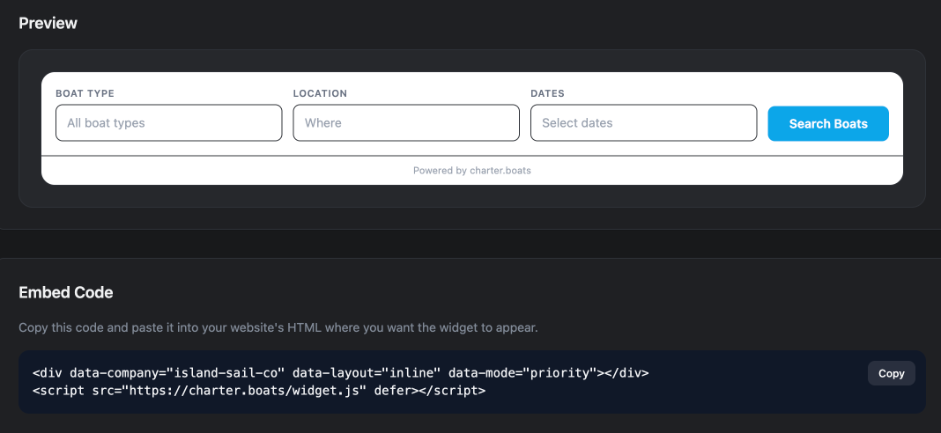
The embed code always matches the choices on the screen. If you change the layout or colour later, copy the code again and replace the old code on your website.
How to put it on your website
The code is two lines. The first line marks where the widget appears and carries your company name, for example data-company="island-sail-co". The second line loads the widget from charter.boats.
- Open the page of your website where you want the search box, in your website's editor.
- Add an HTML or code block in that spot. WordPress, Wix, Squarespace and most website builders have one, often called "HTML", "Custom HTML" or "Embed code".
- Paste the code into it and save or publish the page.
- Open the page in your browser to check that the search box shows.
If you cannot edit HTML on your website, send the code to whoever manages it. It is all they need.
If you do not have a website yet, you can build one with us, with the search already in it. See How do I build my own charter website with charter.boats?
Google Tag Manager
With a Google Tag Manager ID filled in, the widget sends two events to your website's tag manager: cb:impression when the widget is shown, and cb:search when a guest searches. You can use them in your own Google Analytics or ad tracking. Your website must already load Google Tag Manager for this to work.
What the numbers at the top mean
Impressions counts how many times the widget was shown on a page of your website. Searches counts how many times a guest clicked Search Boats. Both cover the last 30 days.
For affiliates
If you joined the affiliate program rather than listing boats, your widget code is on your referral page, not here.
For the other screens in your dashboard, see the Owner Dashboard guide. If something on this screen does not match what you see, ask Mermaid in the chat, or write to support@charter.boats.