
You can build a charter website with charter.boats from your dashboard: open Site, click Create Your Site, edit the sections in the builder, then click Publish. It is free with your account, your boats appear on it from your listings, and it lives at your own address, your-company.com-charter.boats.
Why this is safe to try: every change you make is saved as a draft. Visitors see nothing new until you publish, and you can throw a draft away at any time.
How to create your site
- In your dashboard, open Site.
- Click Create Your Site. The builder opens with a ready-made site for your company.
- Edit it, as below.
- Click Publish. Your site is now live.
The address is shown at the top left of the builder, next to your company name. Once the site is live, click your company name there to open it.
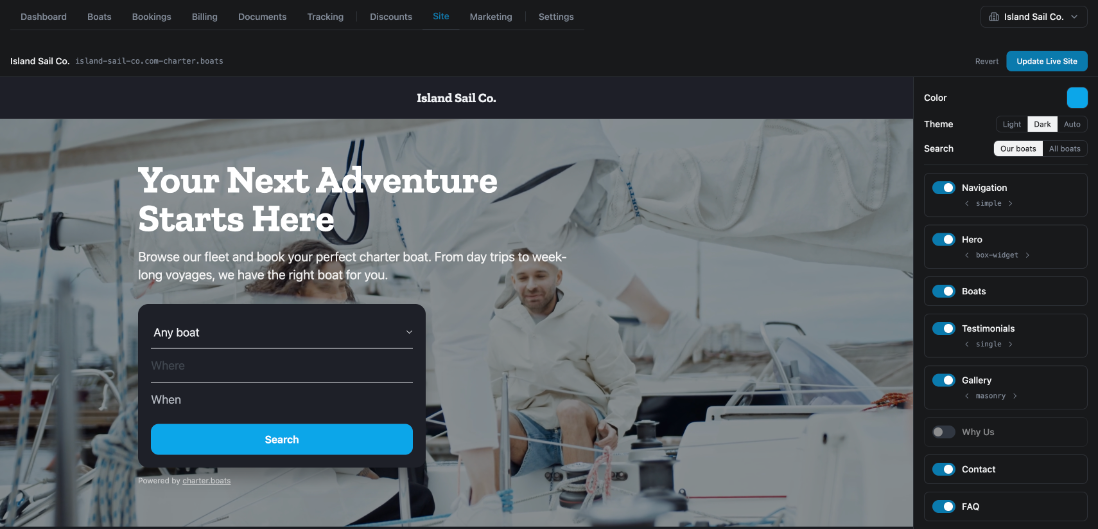
How the builder works
The left side is a live preview of your site. The right side holds the controls. On a phone, tap Customize to open the controls.
Every change saves itself as a draft. You see Saving draft... and then Draft saved at the top.
At the top right:
- Update Live Site puts your draft on the live site. Before the first publish this button reads Publish.
- Revert throws your draft away and goes back to what is live now. A box asks you to confirm with Revert.
- Live, with a green dot, means the live site matches your draft. There is nothing to publish.
Colour, theme and search
At the top of the controls:
- Color: click the square and pick your brand colour.
- Theme: light, dark or auto (follows the visitor's device).
- Search: Our boats shows only your boats in the site's search. All boats shows every boat on charter.boats.
The sections of your site
Your site is built from sections: Navigation, Hero, Boats, Testimonials, Gallery, Why Us, Contact and FAQ. Each one has:
- A switch to show or hide it. A hidden section is greyed out in the list.
- Small arrows under its name to change its layout, where there is more than one.
- Edit: click the section to open its settings. Click Done to close them.
What you can change in each section
Navigation: the text on the top button, in CTA Button Text.
Hero, the big first screen: Heading, Subheading and Background Media. Drop in a photo or video, click browse, paste a link, or click Templates to pick one of our videos.
Boats: the Section Heading, how many Rows to Show (three boats per row on a computer), and the Default Sort: Most Available, Least Available, Lowest Price or Highest Price. The boats come from your listings, so you do not add them here.
Testimonials: click + Add testimonial and type the guest's name and words. You can add a photo. Remove deletes one.
Gallery: drop images in, or click Upload. Drag them to change the order.
Why Us: a Heading and a text about your company.
Contact: Heading, Subheading and an optional Phone Number. When a visitor sends the contact form, the message comes to your company by email.
FAQ: click + Add Q&A for each question and answer.
Below the sections are Footer, for your Facebook, Instagram, YouTube and TikTok links, and Legal, for your own Terms & Conditions and Privacy Policy. Leave Legal empty to use our standard texts.
Who can edit the site
Any team member can edit and publish the site. See How do I add a team member, and what can a member do?
Already have a website?
If you keep your own website, you can add our search box to it instead. See Add a Booking Widget to Your Website. For what the site gives you and why, see Charter company websites.
For the other screens in your dashboard, see the Owner Dashboard guide. If something on this screen does not match what you see, ask Mermaid in the chat, or write to support@charter.boats.