
Your boat tracking system on charter.boats is the Tracking screen in your dashboard. Positions shows your boats on a map once a boat has a GPS tracker linked to it. Availability shows when guests reserve your boats, how far ahead, and for how long, and lets you download the numbers.
Where to find it
- In your dashboard, open Tracking.
- On the left, pick Positions (where each boat is) or Availability (what moved on your calendar).
Any team member can open both.
How to put a boat GPS tracker on the map
Positions only shows boats that have tracking added. With none, the page shows Add Tracking to Your Boats.
- Open Boats and click the boat's name. The boat editor opens.
- In Basic Info, fill in GPS Modem Model and GPS Modem IMEI. The IMEI is the 15-digit number printed on the modem's label.
- Click Save Changes.
Saving links the modem to the boat, and we read its position every hour. The modem itself has to be set up to report to flespi, the tracking service we use. If no position shows up after a few hours, write to support@charter.boats.
You can also enter the boat's MMSI Number, the 9-digit number on your VHF radio. Be aware: we are not collecting new AIS positions at the moment. The map says so too. Positions it shows from AIS are older ones, from our archive. For a live position, use a GPS modem.
For the rest of the boat editor, see How do I edit my boat's listing: details, photos, videos and equipment?
Reading the map
Above the map are three counts: Tracked Boats, With Position and Live fix (24h), the boats that reported in the last 24 hours. On the right is a list of your boats, with a search box for name, MMSI or IMEI. Click a boat to see its last seven days on the map, and play its track back a day at a time.
Booking trends: the Availability section
This section answers when guests reserve, and how far ahead.
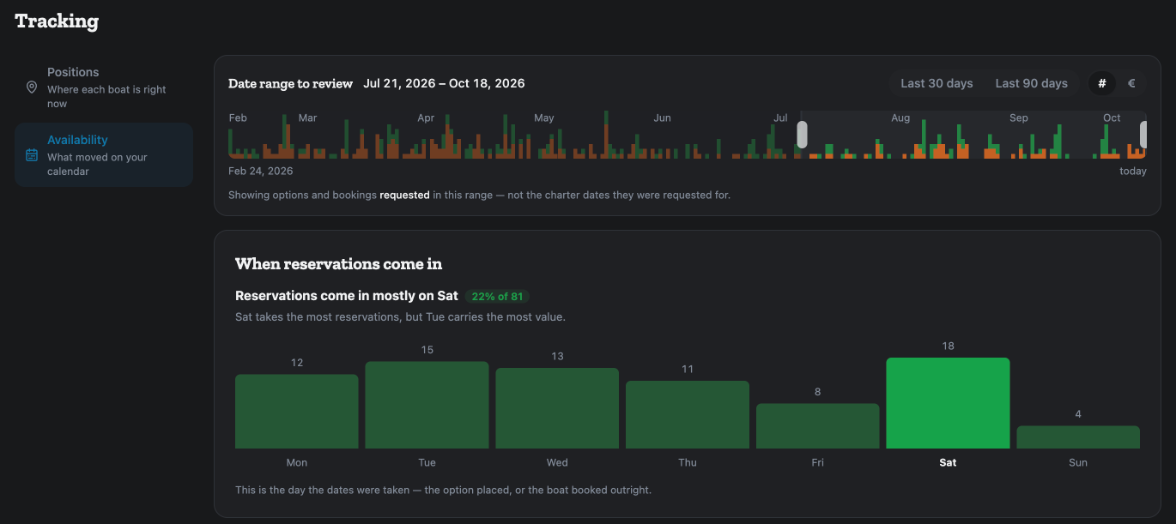
- Choose the period at the top, under Date range to review. Click Last 30 days or Last 90 days, or drag the two handles on the bar.
- Click # to count options and bookings, or € to see their value.
One thing to know: the charts count options and bookings by the day they were requested, not by the charter dates.
What each chart tells you
When reservations come in: which weekday most dates are taken, by an option or a booking.
Options and reservations: what share of your options became bookings, how many options are open now, the typical time from option to booking, and how many bookings had no option before them. If option outcomes were not recorded for the period, it says Not yet.
Lead time: how many weeks before departure guests reserve. One bar per week; the last bar is everything more than a year out.
Charter length: how long the charters are, for example 7 nights, as a share of all bookings.
Use these to plan. If most of your dates go months ahead, set next season's prices early. See How do I set my boat's prices and seasons?
Download the numbers
At the bottom, under Run your own numbers, click Download CSV. The file lists every calendar change behind the charts, one row each, so you can open it in Excel or Google Sheets.
For the other screens in your dashboard, see the Owner Dashboard guide. If something on this screen does not match what you see, ask Mermaid in the chat, or write to support@charter.boats.