
To edit your boat listing, open your dashboard, click Boats, then click the boat's name. The boat editor opens as one long page: change what you need and click Save Changes.
Some parts save on their own the moment you use them: photos, videos, Equipment & Amenities, Pricing and Additional Fees. Everything else waits for Save Changes.
What Save Changes saves
Save Changes is at the top right. On a phone it is in a bar at the bottom of the screen. It saves Basic Info, Location, Description, Equipment, Charter Rules and the booking mode.
After saving you see Changes saved. If the boat no longer has what it needs to be shown, you see Boat unpublished — missing: followed by what is missing.
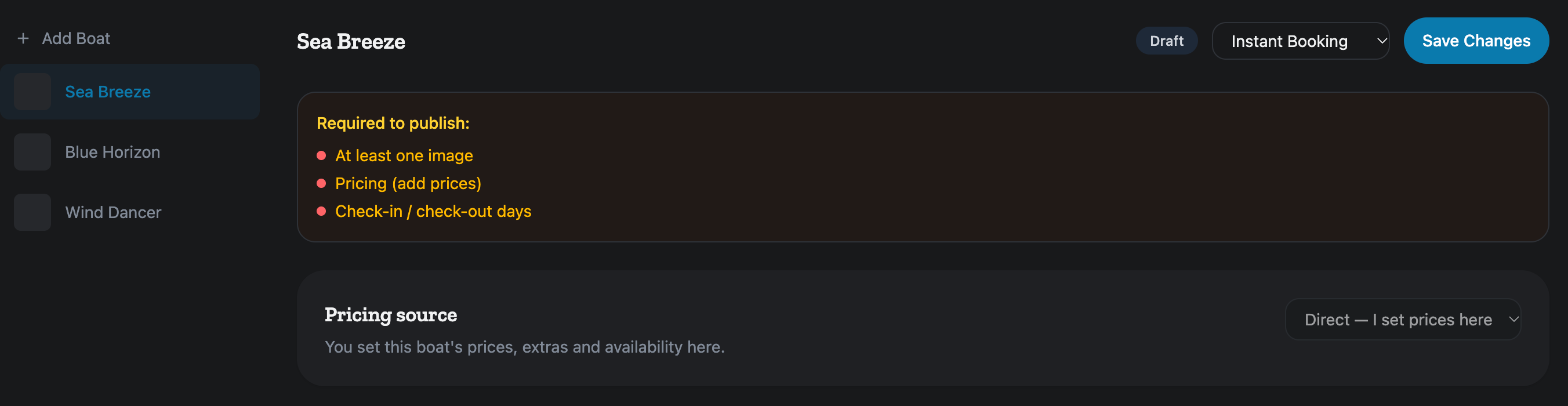
Why does my boat say Draft?
The badge beside the boat's name reads Published or Draft. You do not publish a boat by hand. It goes live by itself once it has a title, a marina, at least one photo, check-in days and a guest capacity.
While a boat is a draft, a box headed Required to publish: lists what is still missing. Add those items and save. A booking mode of Disabled also keeps the boat a draft, see Instant Booking or Approval Needed.
A boat with no prices can be live, but guests cannot book it until it has prices. Set them in How do I set my boat's prices and seasons?.
Basic Info
This section holds Title, Boat Type, Make, Model, MMSI Number, GPS Modem Model, GPS Modem IMEI, Capacity, Length (ft), Year, Cabins, Berths and Toilets.
Under Length (ft) you may see Model default: with the length of that model. If you save a different length, it is kept on this boat only. The tag Your value then appears, and Use model default puts the model's length back.
Boats from MMK or Nausys
If your boat comes from MMK or Nausys, a few fields are greyed out with Set by MMK or Set by Nausys. That system still writes them, so change them there. You can edit every other field, and your edit is kept.
Where your value differs from the one MMK or Nausys sends, a line under the field starts with Edited — MMK has, shows MMK's value, and ends with Your value is kept. Click Use MMK value to go back to theirs. To take over the boat's prices and extras as well, see How do I switch a boat between MMK/Nausys and my own prices?.
Boat listing photos
- Click + Add photos and pick one or more images. They upload at once.
- The first photo is the Cover. Click Make cover on another photo to put it first.
- Use the arrows to move a photo earlier or later.
- Click Hide to take a photo off your listing, and Show to bring it back.
- Click Delete to remove a photo you uploaded. You are asked to confirm, and it cannot be undone.
Photos from MMK or Nausys can be hidden, not deleted, because the next update would add them back.
Location
- In Marina, search for the new marina and pick it.
- A box headed Confirm location change shows the current marina and the new one.
- Click Confirm move, or Cancel to keep the old one.
- Click Save Changes.
On boats from MMK or Nausys the marina is set by that system.
Description
Write what makes your boat special in the text box, then click Save Changes. If you see Hidden from the site. above it, we have taken the text off your listing because it contradicts the boat's details or contains contact or booking information we cannot publish. Edit it and message us to have it reviewed.
Videos
Click Add video and pick a file. MP4, WebM or MOV, up to 100MB. A walkthrough goes live on your listing right away. A video a guest uploaded is marked Guest video: use the eye button to hide it without deleting it. The X button deletes a video after you confirm.
Equipment
Click each item your boat has. Guests filter search results on exactly these items. Items that are standard on your boat's model are already ticked and cannot be unticked. Click Save Changes when you are done.
On boats from MMK or Nausys, this list comes from that system and cannot be clicked. Use Equipment & Amenities below to hide an item instead.
Equipment & Amenities
This list is exactly what your boat page shows. Click an item to hide it from guests, and click it again to bring it back. It saves at once and works on every boat, MMK and Nausys boats included.
Charter Rules
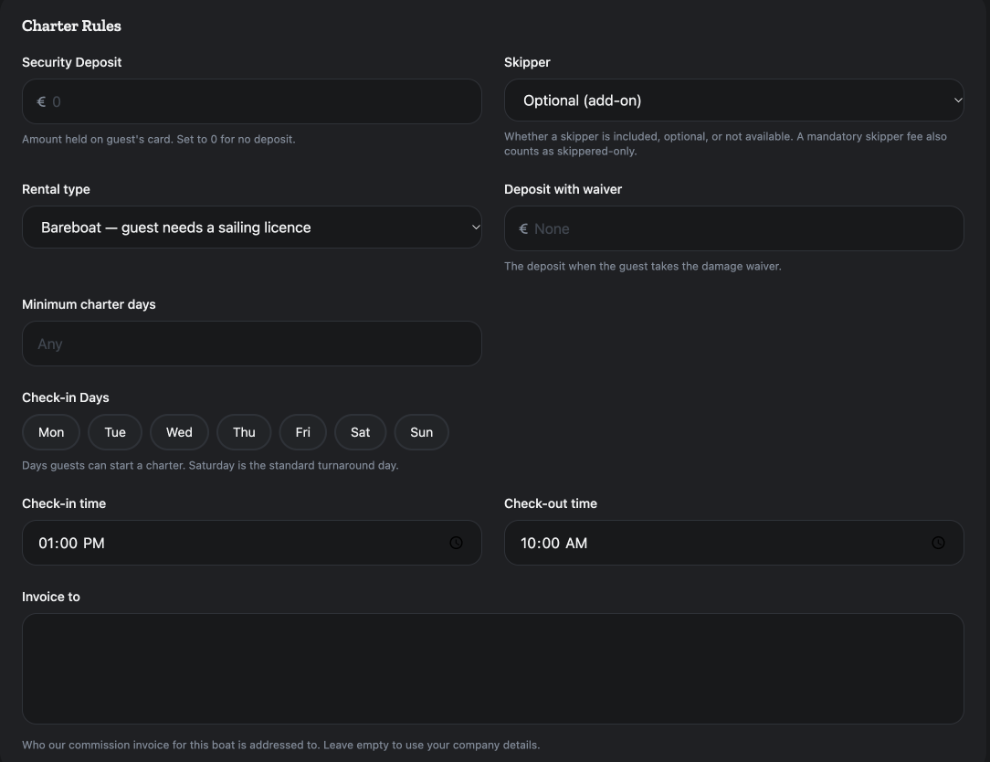
- Security Deposit: the amount held on the guest's card, in euros. Set 0 for no deposit.
- Skipper: Optional (add-on), No skipper or Skippered only. A required skipper fee also makes the boat skippered only.
- Rental type: Bareboat — guest needs a sailing licence, Skippered or No licence needed.
- Deposit with waiver: the deposit when the guest takes the damage waiver. On MMK and Nausys boats it is set by that system.
- Minimum charter days: leave it empty for no minimum.
- Check-in Days: click the days guests can start a charter.
- Check-in time and Check-out time.
- Invoice to: who our commission invoice for this boat is addressed to. Leave it empty to use your company details.
Click Save Changes.
Prices, fees, calendar and booking mode
The Pricing and Additional Fees sections lower on the page have their own guides: How do I set my boat's prices and seasons? and How do I add cleaning, skipper and other fees to my boat?. The booking mode is the drop-down beside Save Changes, see Instant Booking or Approval Needed. Dates are closed on the Boats calendar, see How do I block dates on my boat's calendar?.
Deleting a listing
At the bottom, Danger Zone has Delete Listing. It appears only on boats you added yourself, and only the company owner can delete. You are asked to confirm, and it cannot be undone.
For every other screen in your dashboard, see the Owner Dashboard guide. If something here does not match what you see, ask Mermaid in the chat, or write to support@charter.boats.