
Your company profile and your charter company cancellation policy are both on one page: in your dashboard, open Settings, then Company. Change what you need and click Save Changes at the bottom. The cancellation policy and the billing details can only be changed by the company owner.
The cancellation policy you set there applies to your MMK and Nausys bookings only. Boats you price here yourself follow charter.boats terms: a refund within 24 hours of paying, none after. You cannot change those terms.
Where to find it
In your dashboard, open Settings and pick Company. The page is headed Company with the line Manage your company profile and billing details. A Team members link sits at the top right; team members are explained in How do I add a team member, and what can a member do?.
Who can change what
Any team member can edit the profile, the phone, the website and the address. Only the company owner can change the contact email, the legal and billing details, the cancellation policy and the max commission discount. Team members see those parts greyed out, with the note Only the company owner can change the contact email, bank, tax, invoicing and booking-policy details.
How to edit your company profile
- Under Basic Info, fill in Company Name, URL Slug, Short Description and About. The slug is the last part of your company's address, after charter.boats/companies/.
- Next to Logo, click Upload logo. Use a square image of at least 200 by 200 pixels.
- Next to Cover Image, click Upload cover. A 16:9 image works best.
- Under Contact, fill in Phone and Website. The owner can also change Email. That is where we reach your company, and where an account invitation is sent.
- Under Address, fill in Address Line 1, Address Line 2, City, State / Region, Postal Code and Country.
- Click Save Changes at the bottom of the page. The message Company settings saved confirms it.
Legal and billing details
The owner fills in Legal Name, VAT Number, Tax ID and Registration Number under Legal & Billing. Our commission invoice is addressed to these details, unless a boat's Invoice to field says otherwise. Bank details are not here: they are in Settings, then Payments, as explained in When and how do I get paid?.
How to set your cancellation policy
This section is called Cancellation Policy, with the line Refund rules when guests cancel bookings. It is near the bottom of the page.
If no policy is set yet, a yellow note says Not set, and that guests get only the 24-hour grace. Then:
- Click any of the buttons under the note. The buttons are only shortcuts: each one fills in the two sliders for you. The sliders then appear.
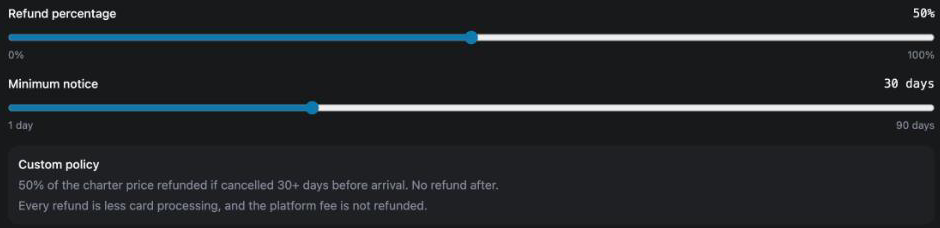
- Drag Refund percentage to the share of the charter price a guest gets back. It goes from 0% to 100%, in steps of 10.
- Drag Minimum notice to how many days before the charter the guest must cancel to get that refund. It goes from 1 to 90 days.
- Read the summary box. It shows the exact sentence guests will read, for example 50% of the charter price refunded if cancelled 30+ days before arrival. No refund after.
- Click Save Changes at the bottom of the page.
You do not have to use the buttons as they are. Click one to start, then move the sliders to your own terms. The summary box always shows what your settings mean.
What guests get on top of your policy
Every guest first gets the 24-hour grace: a refund of the charter price if they cancel within 24 hours of paying. After that your policy applies. The summary box also says Every refund is less card processing, and the platform fee is not refunded.
Sometimes a note under the summary explains your payment schedule, for example Until 30 days before the charter, guests have paid 50% (MMK payment terms). A refund never exceeds what they paid. A refund is never more than the guest has paid so far.
Where the policy comes from
Until you change it, the policy follows your charter company terms from MMK or Nausys. Once you change it here, it stays yours. A booking keeps the policy it was sold under, so a change applies to new bookings.
If your company only has boats you price here yourself, the section is read-only and says This policy applies to your MMK and Nausys boats only. Direct boats follow charter.boats terms: a refund within 24 hours of paying, none after.
Max commission discount
The last section, Max commission discount, says How much of our commission we may give the guest as a discount. Set by MMK/Nausys until you change it. It is the share of our commission that may go to the guest as a lower price. It does not change what you receive.
The owner moves the slider, in steps of 10%, and clicks Save Changes. Saving reprices your MMK boats, and the message says how many were repriced. This is a different thing from your own coupons, which are explained in How do I create a discount coupon for my boats?.
For the other screens in your dashboard, see the Owner Dashboard guide. If something here does not match what you see, ask Mermaid in the chat, or write to support@charter.boats.