
You fill in the passenger list on your booking page, once the booking is paid: open My Bookings from your account menu, click the booking, and find Passenger List. Add everyone who will be on board, by photo of their passport or ID or by typing, then click That's everyone — confirm list. The list goes to the charter company, who needs it for the port authority and for check-in at the base.
The list has room for as many people as the boat takes. The line under the heading counts them: for example 0 added · room for up to 10.
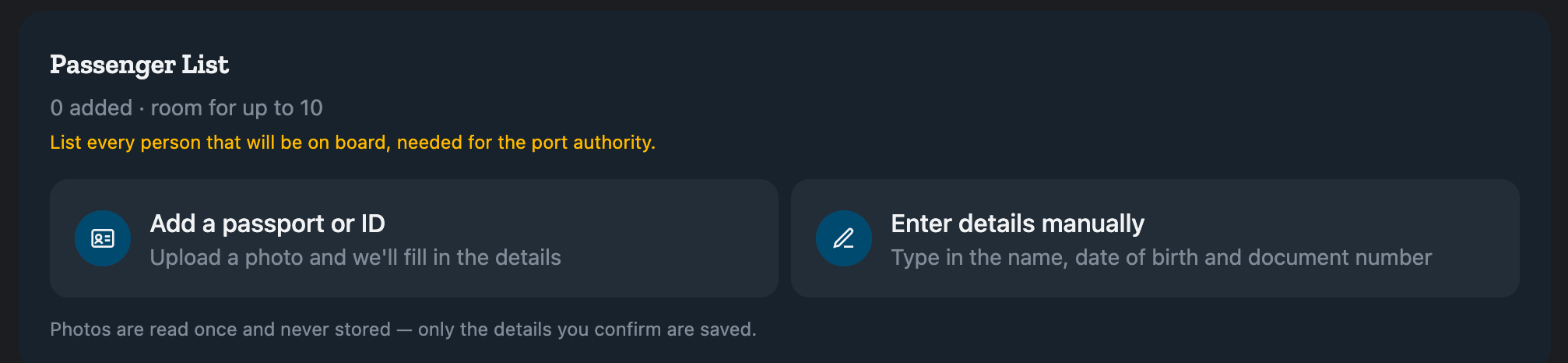
How to add passengers from a passport or ID
- Under Passenger List, click Add a passport or ID. On a phone you can also choose Take a photo and point your camera at the passport page.
- Pick one or more photos or PDFs. Each person found is added to the list, with their details filled in.
- Check every person. A card that reads Missing info — tap to complete still needs something; open it, fill the gap and click Save.
Photos are read once and never stored. Only the details you confirm are saved. If the list is already full, the extra people are not added and the page tells you so.
How to type a passenger in by hand
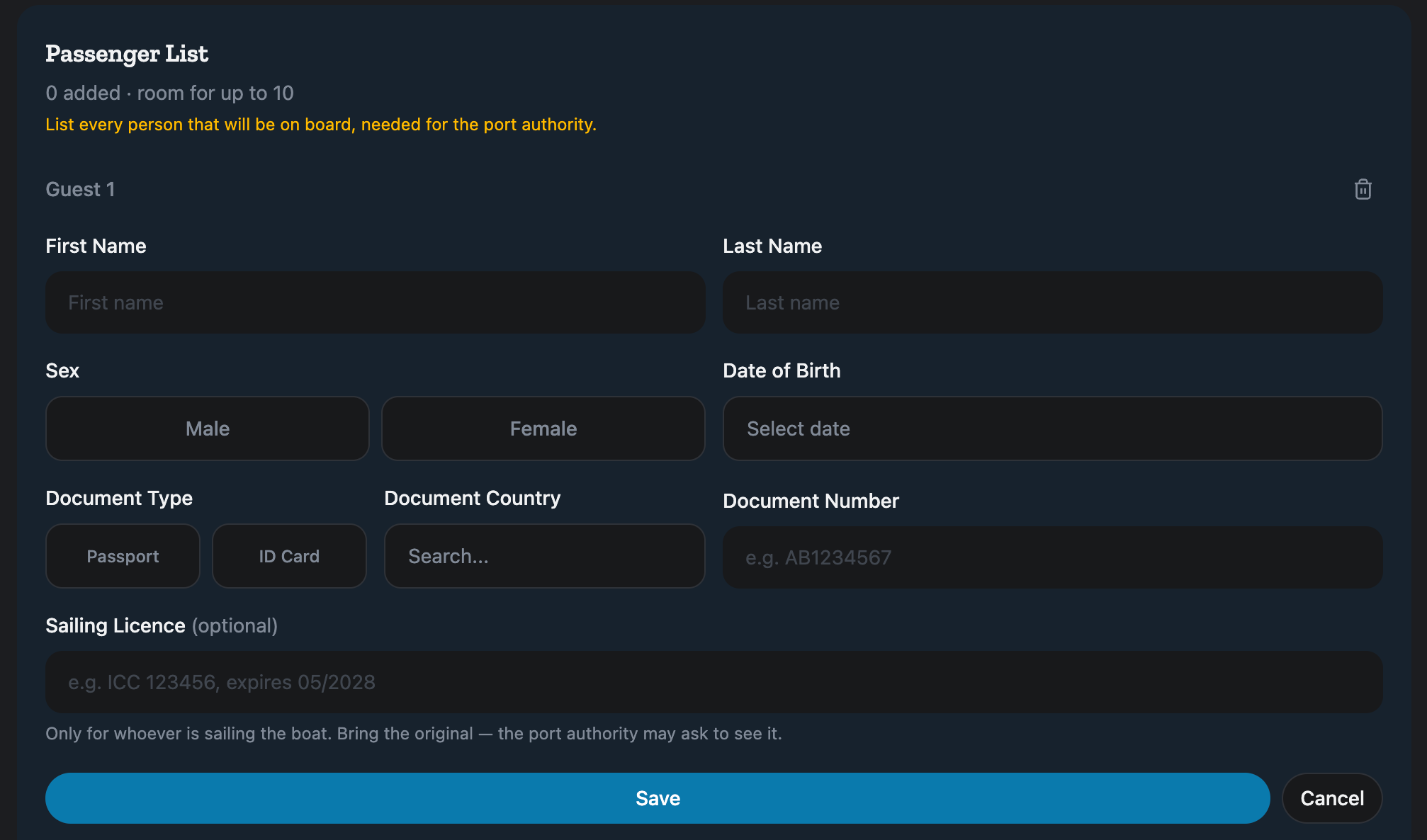
- Click Enter details manually, or + Add manually once the list has someone on it.
- Fill in First Name, Last Name, Sex, Date of Birth, Document Type (Passport or ID Card), Document Country and Document Number. All of these are needed.
- Sailing Licence is optional. Fill it in only for whoever is sailing the boat, and bring the original: the port authority may ask to see it.
- Click Save, or Cancel to leave without adding the person.
To add more people, use + Scan passport or ID or + Add manually under the list. To take someone off, use the bin icon on their card and confirm.
How to confirm the list
When everyone is in, click That's everyone — confirm list. The list is sent to the charter company and the section reads Confirmed & Submitted.
- Download gives you the list as a file.
- cancel, beside Confirmed & Submitted, reopens the list so you can change it. Confirm it again when you are done.
For some boats you also see Synced with charter company. That means the list has already reached the charter company's own booking system.
Who can fill it in
You can, as the guest on the booking. If a travel agent made the booking for you, they can fill it in too. The charter company sees the list from their side; how they use it is in How do I send a charter contract or passenger list to my guests?.
This article is part of the booking help. If something here does not match what you see, ask Mermaid in the chat, or write to support@charter.boats.