
Click Sign in at the top of any page. On Welcome back, choose Continue with Google, Continue with passkey, or type your email and password and click Sign in with email. If you forgot your password, click Forgot password? and we email you a link to set a new one. Your charter.boats account, its sign-in email and its notification settings are all under My Settings once you are in.
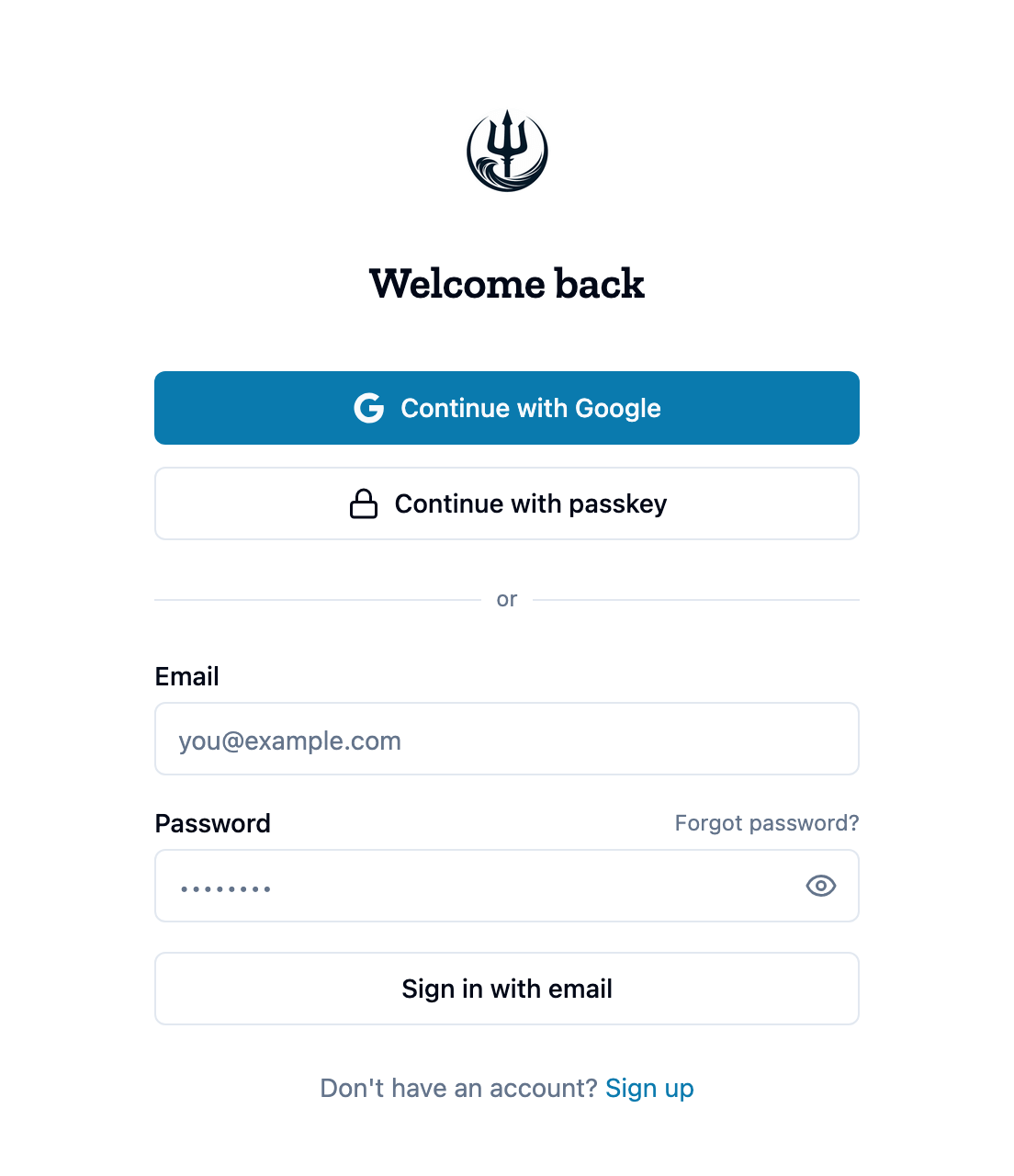
How to create an account
- On the sign-in page, click Sign up.
- On Create your account, click Continue with Google, or fill in Name, Email and Password (at least 8 characters) and click Create account with email.
- With email, the page says Check your email. Open the email we sent and click the link in it.
- The link opens Thank you for verification. Click Get Started.
If you never got the confirmation email
Check your spam folder first. Then go back to the sign-in page and sign in with your email and password. While the address is not confirmed, the page tells you so and shows Resend verification email. Click it and a new link is sent.
If a link has run out, the page says Verification failed and that the link has expired or is invalid. Click Go to login and use Resend verification email, or Sign up again.
How to reset your password
- On the sign-in page, click Forgot password?
- On Reset your password, type your email and click Send reset link. The page says Check your email.
- Open the email and click the link. On Set new password, fill in New password and Confirm password, then click Reset password.
- The page says Password updated. Click Sign in.
If the page says This reset link has expired or is invalid. Request a new link., start again from step 1.
How to sign in with a passkey
A passkey lets you sign in with your fingerprint, face or device PIN instead of a password. You add one once you are signed in: open My Settings from your account menu, click General, and under Security click + Add a passkey. The same place has Remove. More on that page in How do I change my notifications, sign-in email or delete my account?.
After that, click Continue with passkey on the sign-in page and confirm on your device. The passkey button and the Security section show only in browsers that support passkeys.
If sign-in is down
If the page says Login is temporarily unavailable. Please try again in a few minutes., the problem is on our side. Wait a few minutes and try again.
This article is part of the booking help. If something here does not match what you see, ask Mermaid in the chat, or write to support@charter.boats.